



Probably the most important and the biggest button on iPhones and iPads is the “Home Button. This single button takes users to the home screen no matter what you are doing. This button makes iOS devices so easy to use and handle. As we know that on many Android devices, home button is the software button, and it will hide while using different apps, and you feel stuck, but in iOS devices, it’s always there to find a way back to home screen immediately. Moreover, the power users can double tap or triple tap the button for some additional functionalities.
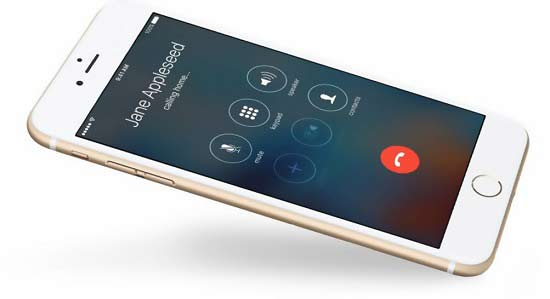
Add “Touchscreen Home Button” on iPhones and iPads
The extensive use of something always leads to its end, and same is the case with your home button, and it may become unresponsive at some time. If this will happen, obviously this makes using your device annoying. So, to avoid this problem, you should enable the software home button option in your iPhones and iPads.
How to Add Touchscreen Home Button on IOS Devices:
- Open Settings
- Go to General, then Accessibility
- Scroll down to the Interaction labeled section and tap on AssistiveTouch
- AssistiveTouch will be in green if it is ‘On’
- Now a white circle with a gray box will appear on the screen. Tap on the circle, a big box will appear on the screen. The Square Home Button at the bottom of the box looks and functions same as the physical Home Button of your iPhone or iPad.

Add “Touchscreen Home Button” on iPhones and iPads
Users can use this button same as they use the home button. You can use it with single, double, or triple taps. Moreover, hold on the home button for a while if there is a hardware problem. The gray box remains visible and usable in all apps.
Related News
 Apple iOS 9.2 finally goes Public
 AMOLED displays have more market share, Samsung comes highest with 95.8% of it
 India officially denies to close any deal with Apple to for selling refurbished handsets.
 iOS 11 will allow you to shut down your mobile device without power button!
 Learn iOS 11 Trick for Rearranging Home Screen
 “Drag and Drop” New Feature of IOS 11 is tumbled from IPhones
 The Upcoming Apple Watch to have LTE Support
 Setup Amazon’s “Dash Wand” With These Simple Steps
