Android is customizable which is a plus point. Today I would be rooting Samsung galaxy J1. In some cases, you need a PC and in some cases you do not. We would be using the PC method because it is permanent. Samsung Galaxy J1 is entry level smartphone from Samsung which can be rooted using Odin.
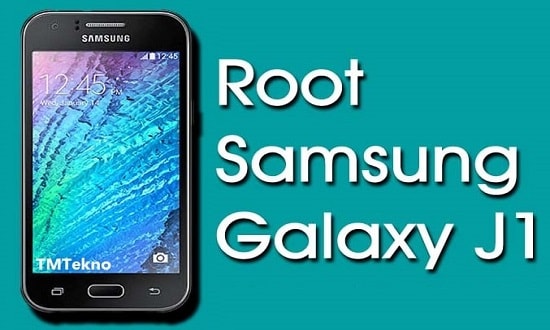
Note: Rooting your Samsung Galaxy J1 will void the manufacturer’s warranty and you may damage your device. In case of any damage in any form while following this tutorial mobile phone collection will not to be responsible in anyways. You may proceed at your own risk.
Process:
- Back-Up
First back up the data incase you lose the data or you brick it.
You can do by the following
- Copying all the data from you mobile to your SD card and remove it.
- You can also use your PC to back-up the data.
- Samsung also has the functionality of using Samsung Kies to back up the data, doing it manually however can give better control over the content to be backed up.
- Download USB drivers for your Samsung Galaxy J1
Connect your smartphone with your PC and download the drivers from the following link
You can either
- Download Samsung USB Drivers (http://www.devfiles.co/download/AbRa7wHc/SAMSUNG_USB_Driver_for_Mobile_Phones.exe)
- Download Samsung KIES(http://www.samsung.com/in/support/usefulsoftware/KIES/)
- Enable USB debugging mode on your on Samsung Galaxy J1
To enable the USB debugging mode follow these steps.
- Go to Settings on your smartphone
- Scroll down and find ‘Developer Options’ and tap there
- Enable USB debugging and OEM Unlocking
If the ‘Developer Options’ isn’t visible, you can make it visible by following these steps.
- Go to Settings on your smartphone
- Scroll down till you see “About Phone” and tap there
- Tap on Build Number for 5-7 times to make the Developer Options visible
- Now follow the standard steps to enable USB debugging and OEM Unlocking
- Download the root packages On your PC
Please perform the following steps to download the root package
- Go to Settings on your smartphone.
- Scroll down till you see “About Device” or “About Phone” and tap there.
- Note down the model number, check if it is J100H.
- Download the Odin3(http://www.mediafire.com/file/v26m0vfo1rb9xi6/Odin3_v3.10.6.zip) and extract it on your PC
- Download .tar file from here(http://www.mediafire.com/file/r99xeoywhdryenc/boot.tar.md5)
- Download iRoot for PC(http://irootdownload.com/)
- Open your smartphone in Fastboot mode
- Make sure that your smartphone is not connected to any PC.
- Switch off your smartphone.
- Press and hold the Volume Down, Home and Power Button simultaneously.
- Read the warning and, if agreeing, confirm by pressing the Volume Up key.
- Process on your PC
After connecting your device, open the folder where you have extracted Odin files.
- Find the Odin3.exe and open it.
- Click on ‘PDA’ button and select the .tar file you downloaded.
- Click on the ‘Start’ button.
Phone will reboot automatically. Now disconnect phone from the system
- Run the iRoot program and click on Launch.
- Connect your smartphone back to the computer and wait till the iRoot tool detects your smartphone.
- Click the Root button and wait until the tool successfully roots your device.
You can check by downloading root app from the Google Play store. It will check for you that if you have performed the rooting correctly.
Written By Imran Zaheer