


You might see after the app update that the Android app shortcuts does not work. Here is the method to fix them
When you reboot the your phone or re add the shortcut to your home screen this will fix the broken app shortcuts
The fastest way is to re add the shortcut to the home screen.
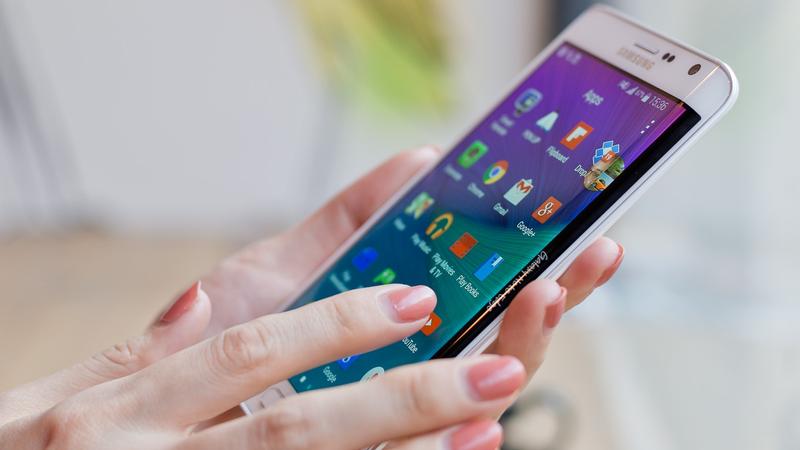
How to fix broken app shortcuts: Reboot your phone
When you tap and hold the broken app shortcut you will see the remove option. Some Android apps will give you the option to uninstall the app. When you remove it find the app in your app drawer and re add it in your home screen by long pressing the app and drag it to the proper location
Often a phone reboot will fix the broken app shortcut.
Hold down the power key on your phone, you will see a prompt window asking you what to do. You select the Reboot option. This will take some time
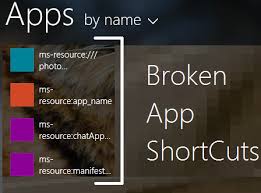
How to fix broken app shortcuts: Clear your phone’s cache
If the above explained methods does not work then you can try out clearing the cache. This could solve your problem.
To enter in the recovery menu switch off the phone and hold the power button and up volume key. Un press the key until you see the android logo
Now you are in the recovery menu. Use volume keys to navigate and find the clear cache. This is often seen with the factory reset option but you won’t want to do it.
If you find the separate option to clear the phone cache and go ahead by selecting the option.
When you are done you can reboot your phone. This will take some time usually more than the usual rebooting time because this time cache will also be cleared. Now all of your apps and shortcuts will work as they are supposed to.
Related News
 How to move iPhone apps in an easier way?
 How to fix iphone 7 and iphone 7 plus black screen of death?
 How to show your Android device on your TV?
 How Google Pixel adds value to Android Long-Press.
 How to resume when stuck Catching Pokémon.
 How to restore deleted files.
 How to make iPhone 7 button more customization.
 How to increase battery life on the Samsung Galaxy S8
